The original representation will look like this:
The toolbar consists buttons that provide quick access to various tools and functions for viewing the pipe model in the 3D viewer. It includes buttons for actions such as zooming, panning, rotating and showing detail information about the pipeline (elements).
|

|
Click on the pipeline to select a pipe element. An element label will be shown with the element properties.
Click on the selected element again to hide the element label.
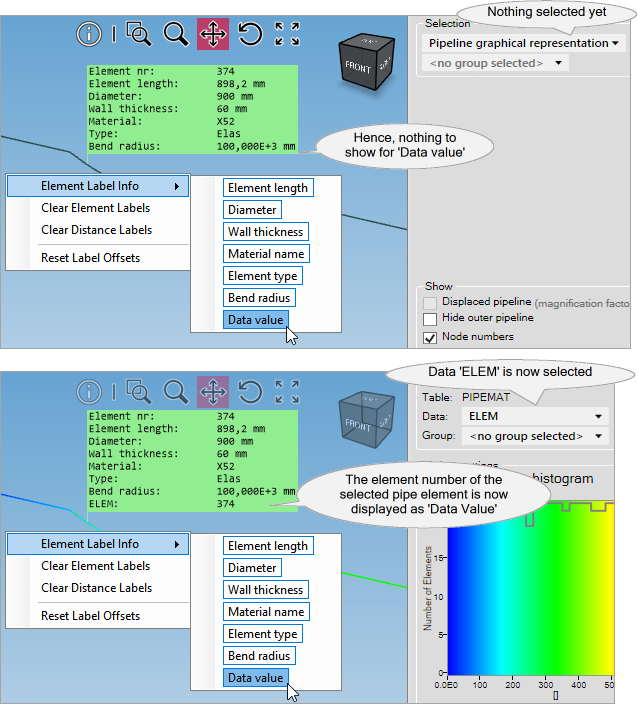
 The element properties shown on the element label can be set via the Context menu. The element properties shown on the element label can be set via the Context menu.
Use <Tab> to move forwards from one element to the next or <Shift><Tab> to move backwards.
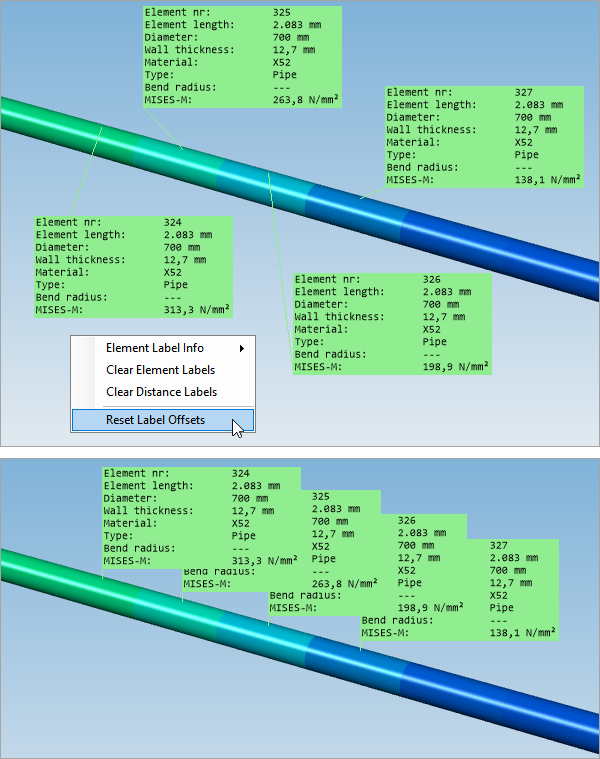
You can open multiple labels by clicking on different parts of the pipeline. If any labels overlap, simply drag and drop them to reorder.
To switch back to the default position, right-click to open the Context menu and select 'Reset Label Offsets'.
|
|

|
Select an area by dragging a rectangle. Releasing the mouse button the selected area will be zoomed in to.
|
|

|
In this mode pressing the left mouse button and moving the mouse up the configuration is zoomed in. Moving the mouse down the configuration is zoomed out. The centre of the window will remain the same.
|
|

|
Panning is not much more than moving the current configuration shown on the screen in any direction.
Using <Ctrl><arrows> will also pan the configuration.
|
|

|
Rotation can be performed in any direction. The configuration is rotated around the centre of the viewport.
Rotating can also be done by using the <arrows>.
|
|

|
Having part of the pipeline in the viewport pressing this button the complete configuration will be zoomed out to. The direction of the view will remain unchanged. Since this is a one-time-operation, the originally selected button will be re-selected.
|
After selecting any toolbar button, you can easily zoom in and out using the mouse wheel. Scrolling down will zoom out, while scrolling up will zoom in. The location of the mouse pointer will serve as the focal point for the zoomed area.
See also 'Keyboard shortcuts' for the keyboard combinations.
|

When the user has got no clue anymore from which viewpoint the configuration is shown use of the view cube will offer a solution. The cube has a text on each side: front / back / left / right / top / bottom. The cube itself can be rotated. Each side is subdivided into nine separate areas which can be selected. The areas are shown as red rectangles when the mouse hovers over it. As an example the current view of the cube is shown (1). The cube is rotated so the top side will become visible (2). Then the top is selected (3) and the configuration will become clear again (4).
|
A context menu is available by right-clicking on the viewport. The following options are available:
The element label info 'Element number' will always been shown.
The element label info "Data Value" displays information from the item selected in the dropdown menu.
To activate this feature, ensure that the visualisation is set to 'Information' mode. Please note, however, that this menu option is only available by right-clicking on an ident. Hence, this menu will only appear if the option to display idents is enabled.
The distance label contains the following data:
•ΔX: |
X-coordinate difference between the two idents
|
•ΔY: |
Y-coordinate difference between the two idents
|
•ΔZ: |
Z-coordinate difference between the two idents
|
•ΔAX-L: |
the distance between the two idents measured along pipeline axis
|
•ΔAX-LP: |
the distance between the two idents measured along projection of polygon lines on the horizontal X0Y-plane
|
|
Use these show options for a more comprehensive view of the pipe configuration.
|

|
Fixed closed end point
|

|
Fixed open end points
|

|
Free closed end point
|

|
Free open end point
|

|
Infinite closed end point
|

|
Infinite open end point
|

|
Tee piece
|

|
Joint
|

|
Support
|

|
Connect
|

|
Roller support
|
|
Common_functionality (last modified: Mar 3, 2026)
See also:
Graphical representation of the configuration
Graphical representation of the results


.png)
.png)